Export and Import User Settings
Starting with version 5.3.x, AppVentiX supports exporting and importing user settings, making it easier to migrate configurations between different AppVentiX sites.
Export User Settings
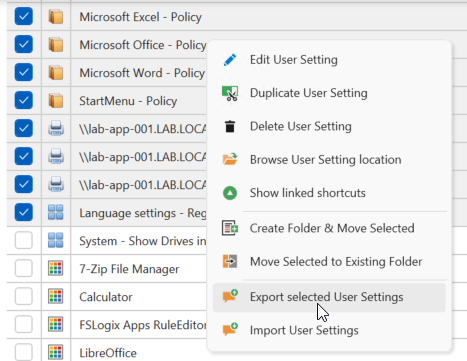
To export one or more User Settings, select the items you want to export. Right-click and select Export selected User Settings.
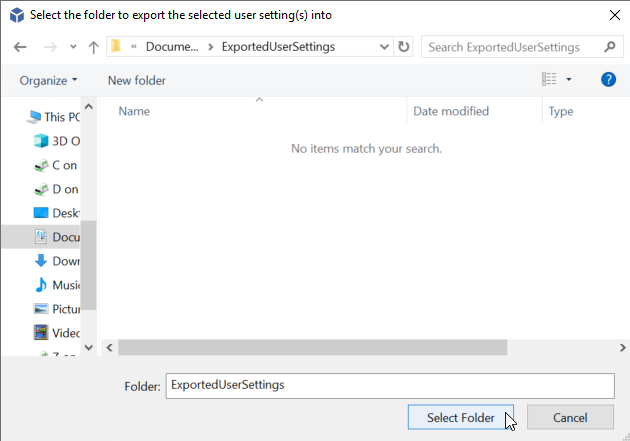
Select a folder for the export files and click Select Folder.
You can click Yes to open the folder location or No to close the confirmation popup.
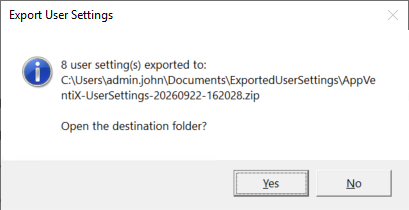
The selected items will be stored in a ZIP-file.

Import User Settings
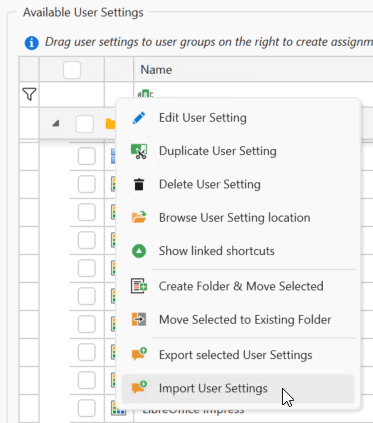
To import one or more User Settings from a previous export, right-click and select Import User Settings.
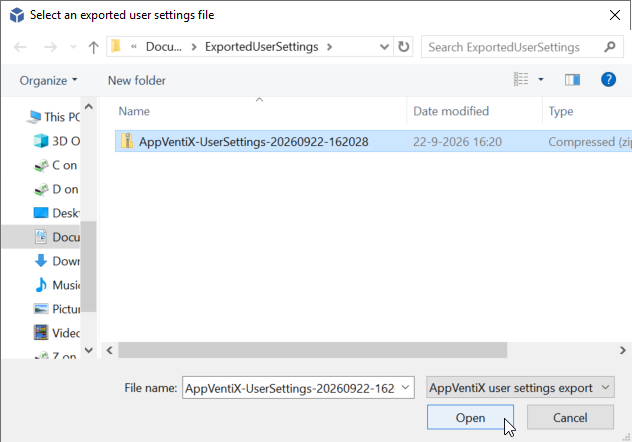
Select the ZIP-file from a previous export and click Open.
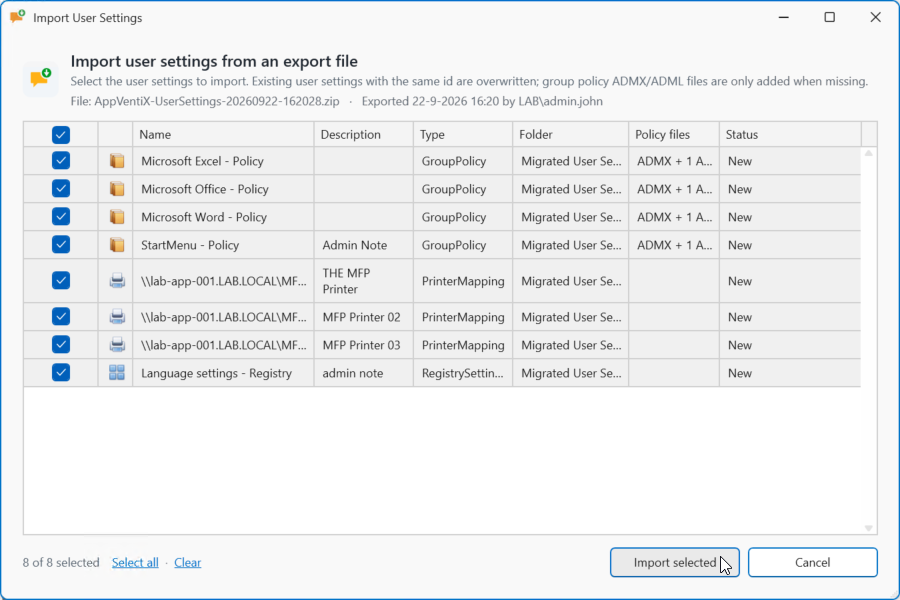
Next, select the items you want to import into the current configuration and click Import selected.
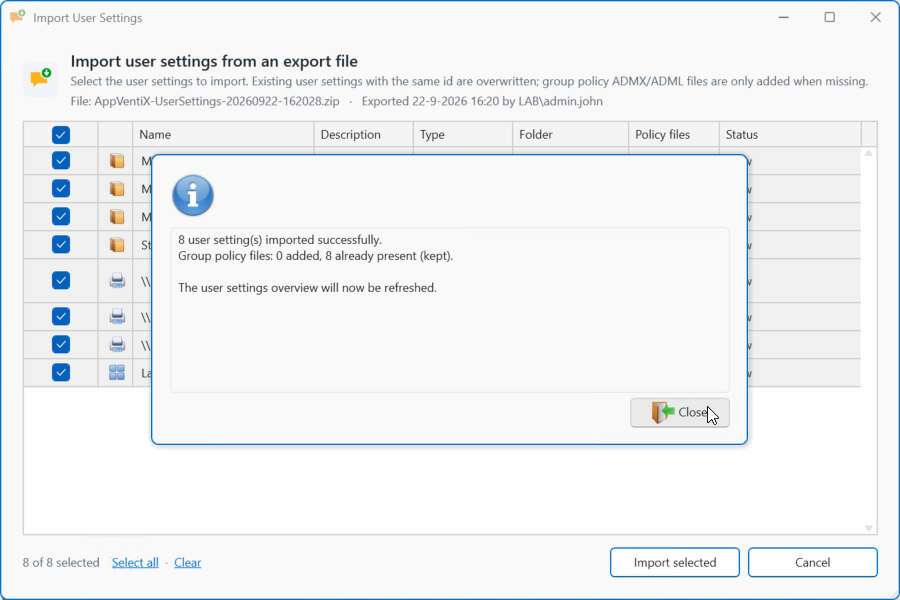
When the import succeeds, click Close.
Import from AppVentiX Store
AppVentiX offers a set of basic settings getting you started with a minimal Windows baseline as well as some helpful configuration options.
Visit Default User Settings