Install the AppVentiX Agent
The AppVentiX Agent handles application delivery on the client machine. It connects to the configuration store to retrieve its configuration and publishing tasks.
Prerequisites
Before installing the agent, ensure the following:
- A supported version of Windows is installed on the machine or master image
- The AppVentiX configuration store is accessible from the machine
- You have sufficient permissions to install software (local administrator)
Locating the Installer
You can find the Agent easily from Central View by clicking the Browse Agent button on the Machines & Activity tab.
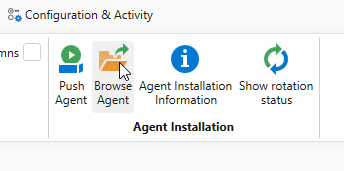
The agent installer is available from two locations depending on your configuration store type:
1. AppVentiX Central machine
If you have configured an Azure Blob Storage account, the agent is located on the machine where Central View is installed:
C:\Program Files\AppVentiX\AppVentiX Central View\Agent\AppVentiX Agent.msi
2. SMB file share
If you have an SMB share configured, the agent is located in the configuration store:
\\fileserver.domain.local\config\Agent\AppVentiX Agent.msi
Replace \\fileserver.domain.local\config with the actual path to your configuration store.
Installation
The agent can be pushed remotely to machines (even when users are logged in, no reboot is needed) or installed silently using an automated procedure, like an image build procedure or pipeline. When an older version of the agent is detected, it will be upgraded automatically, see Upgrading the Agent.
Note
If you are pushing the agent remotely, skip to Option A: Push Agent.
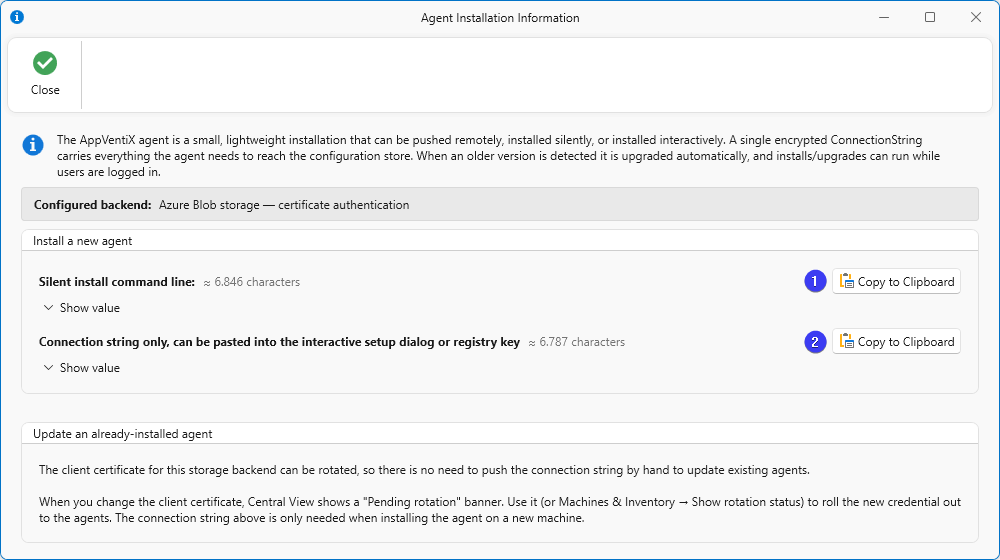
For manual or silent installation, first open Central View, go to the Machines & Inventory tab, and click Agent Installation Information.

Two values are shown:
- Silent installation with connection string - needed for Option C: Silent Installation
- Connection string only - needed for Option B: GUI Installation
Option A: Push Agent
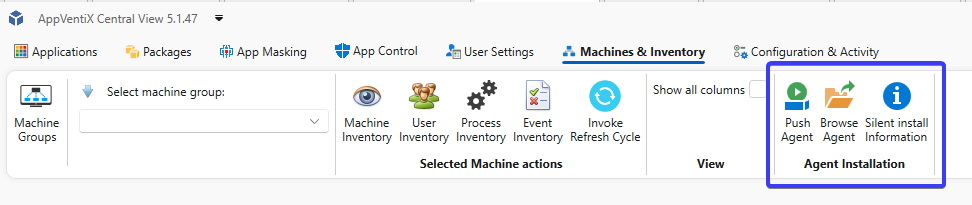
In the Central View console:
- Go to Machines & Inventory.
- Select the machine group containing the machines you want to target.
- Select one or more machines.
- Click Push Agent.
The agent will now be installed or upgraded automatically.
Option B: GUI Installation
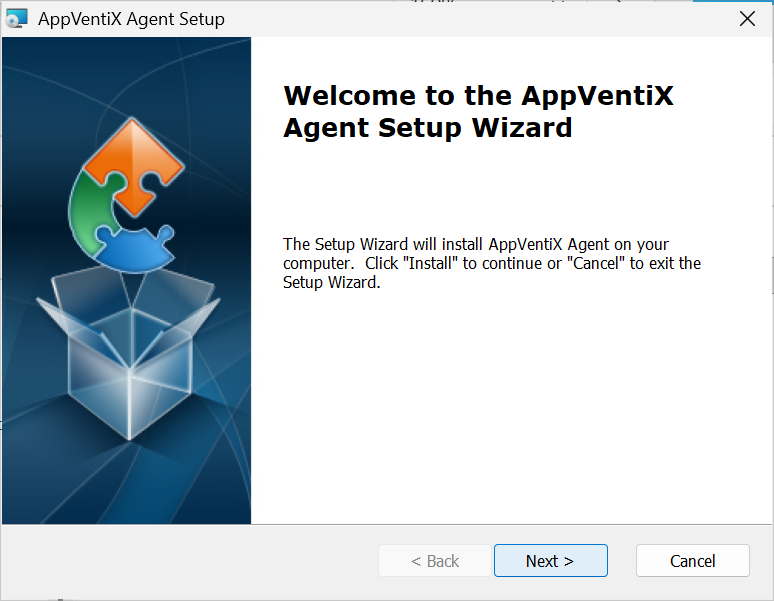
Run AppVentiX Agent.msi by double-clicking it.
Click Next to start the installation.
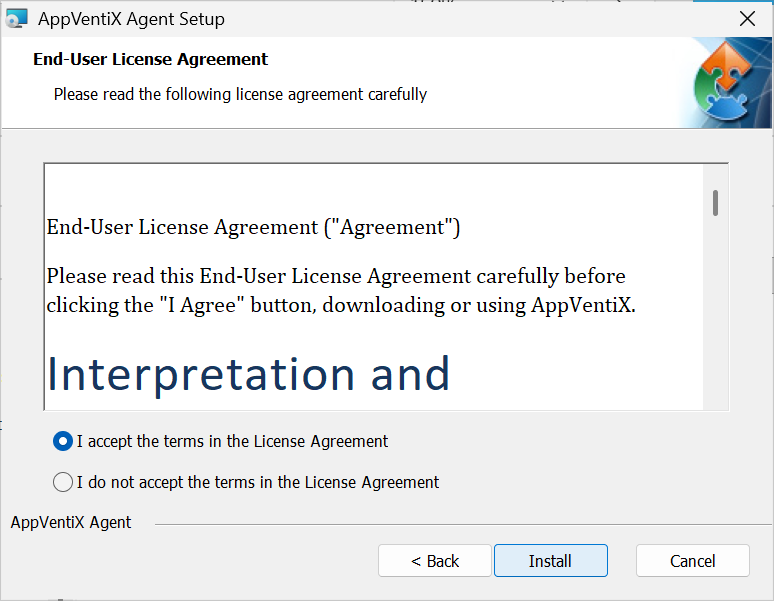
Read the End-User License and click Next to continue to the next step.
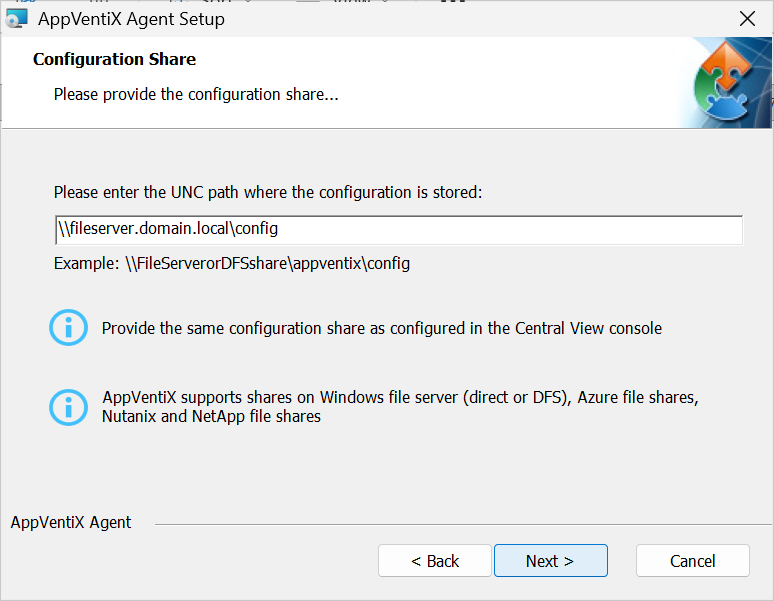
Paste the connection string copied from Central View (value 2) and click Next.
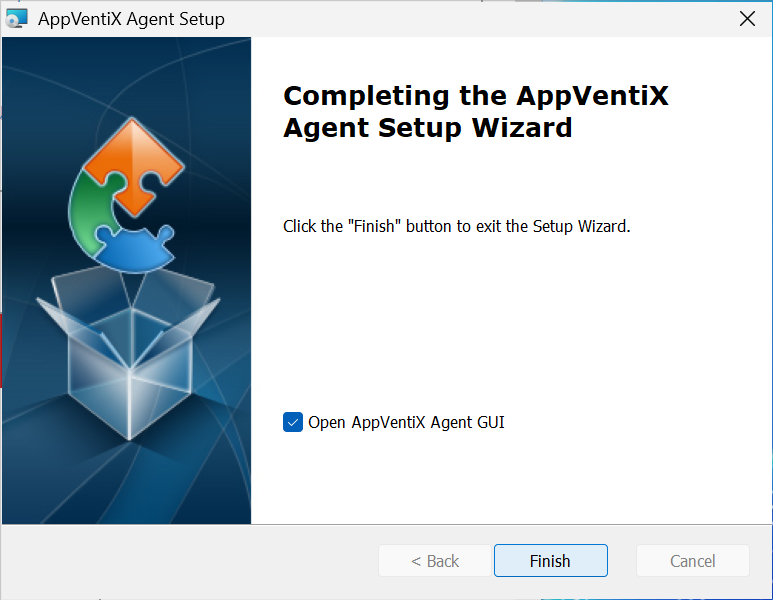
Optionally uncheck Open AppVentiX Agent GUI if you do not want the Agent GUI to open after installation. Click Finish to complete the installation.
Option C: Silent Installation
For scripted or image-based deployments, use the following command:
The /quiet switch suppresses all UI. The CONNECTIONSTRING parameter tells the agent where to find its configuration and how to authenticate if this is required. This is the only required parameter beyond the standard MSI switches.
Note
For non-persistent single or multi session environments, run the silent installation on the master image before sealing it. Depending on the configuration certain tasks can run before the image is sealed.
After Installation
Once installed, the agent connects to the configuration store and retrieves its configuration automatically. No further manual configuration is required on the client.
Proceed to Step 4: Verify the Agent or optionally Optimize the Workspace before verifying.