Central View Inventory and Advanced Settings
Central View Inventory
By default, the machine, user, process, and event inventory data is stored on the configuration store in the inventory folder. When an inventory is triggered, the agent will receive a command (also through the configuration store) to perform the inventory. The inventory data is displayed (together with the inventory time) in the console.
Optionally it is possible to enable direct inventory to the agent using WinRM (in the advanced agent settings, turn the inventory slider to disabled). The performance and scalability of the inventory through the configuration store is much better than the direct connection, so it is recommended to leave the inventory through configuration store option enabled.
Central View Advanced Settings
In the Central View advanced settings you can configure global settings which will apply to the whole deployment (both console and agents). The following advanced settings can be configured:
- Multi domain support: Enabled by default for new installations. It will provide support when users are located in different domains. Not needed if you manage a single domain.
- Enable optimized group retrieval: Optimizes the group retrieval for users, using a token refresh mechanism to also update groups when users are logged in.
- Enable LDAPS: When enabled, both Central View and agents will use LDAPS to communicate to the domain. Note that you need certificates installed on your domain controllers.
- Use SSL for remote machine inventory: Enables WinRM communication over SSL. Note that you have to deploy a machine certificate to the agent machines in order to use WinRM over SSL. This setting is not used when inventory is done through the configuration store (new default).
- Inventory machines on FQDN: When enabled, the FQDN (for example
machinename.mydomain.local) will be used to contact the machines for management. - Remote connection (WinRM) time-out value: The maximum time to wait before timing out a connection to an agent. Increase this value when running inventory over WAN connections. Not used when inventory is done through the configuration store (new default).
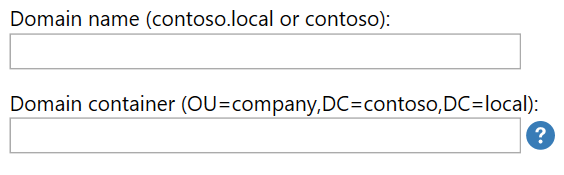
- Manually configure the domain context: By default AppVentiX will use the default domain configuration. When your Active Directory is complex or has delegation configured, you might want to manually configure the domain context. When you enable this option you can configure the domain name and domain container.
Domain Context Examples
For example, the domain name you want to use is contoso and the domain container is OU=Myorganization,DC=contoso,DC=local. AppVentiX will look for machines and user/groups in this OU only.
It is also possible to provide multiple domain containers, for example when your machines and user groups are in different OUs:
OU=Mymachines,OU=Myorganization,DC=contoso,DC=local;OU=Myusers,OU=Myorganization,DC=contoso,DC=local
Note the separating semicolon.
For help with this configuration, contact support@appventix.com.