Share Permissions and Share Configuration
AppVentiX supports Windows file shares (both direct and DFS), Azure file shares (domain integrated or stand-alone), and shares created on storage vendors like Nutanix and NetApp. AppVentiX can be configured to use integrated authentication or a service account to access the shares. The permission table is visible in the Central View console (share permission button).
Share configuration
Set the share permissions to Everybody Full Control and control access with the NTFS permissions. The effective permission is the most restrictive of the two, so leaving the share open keeps the NTFS permissions in charge.
Grant the following permissions on the store:
| Location | AppVentiX Agent | AppVentiX Central View |
|---|---|---|
| <Configuration store folder>\ | Read | Read/Write1 |
| <Configuration store folder>\Inventory | Read/Write2 | Read/Write1 |
| <content store folder(s)>\ | Read | Read3 |
1 Central View needs Modify permissions on the configuration store to change the configuration.
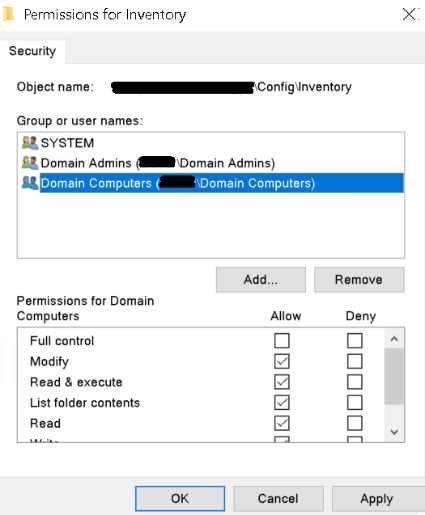
2 The Agent needs Modify permissions on the Inventory folder to be able to communicate with Central View. You can configure another path for the inventory location in the Agent Settings configuration.
3 Central View needs Modify permissions on the content store if you want to edit packages, convert MSIX packages to App Attach or App-V packages to MSIX, or if you want to delete content from the content store directly from the console.
Which account these permissions are granted to depends on how the console and the agent authenticate, see the sections below. In an Active Directory environment with integrated authentication, the Domain Computers group needs Read & Execute on the configuration store:
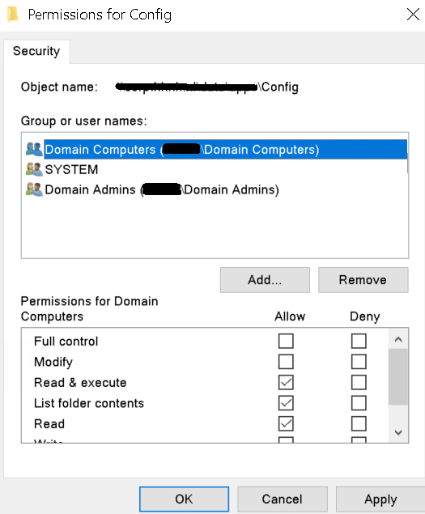
On the inventory folder inside it, the same group needs Modify:
Tip
By default the inventory is stored on the configuration store. On the Inventory tab of the agent settings you can point a machine group at another share instead. The machines need Modify permissions on whichever location you use.
Windows file share, storage vendor file share, or AD integrated Azure file share
Integrated authentication
With integrated authentication the Central View console will access the share(s) with the currently logged in user, and the Agent will access the share(s) with the computer account.
File permissions needed for this option:
- User group performing management in Central View: Modify permissions on the configuration share and the content share(s)
- Domain Computers group (or group containing the machine accounts): Read permissions on the configuration share and the content share(s)
- Domain Computers group (or group containing the machine accounts): Modify permissions on the inventory folder only
When RBAC is enabled, the group performing management splits into the Admin, Operator and Helpdesk groups. Grant those groups their permissions as described under Permissions when RBAC is enabled.
Configured account (service account)
With a configured account the Central View console will access the share(s) with that account, no matter which user is logged in. The Agent keeps using the computer account until you configure an account on the agent as well, see Service Accounts.
File permissions needed for this option:
- The configured (service) account: Modify permissions on the configuration share and the content share(s)
- Domain Computers group (or group containing the machine accounts): Read permissions on the configuration share and the content share(s)
- Domain Computers group (or group containing the machine accounts): Modify permissions on the inventory folder only
When you configure an account on the agent too, that account needs the Read and Modify permissions listed for the Domain Computers group instead.
Warning
File-level RBAC has no effect on the console with a configured account. Every console user reaches the store as the same account, so the file system cannot tell the roles apart. The roles you configure in Role Based Access Control (RBAC) still apply inside the console.
Standalone Azure file share
Configured account (storage account key)
A stand-alone Azure file share has no Active Directory identities to grant permissions to. Both the console and the agent access the share with the storage account name and access key, entered as localhost\storageaccountname. Azure AD Kerberos integrated shares are configured the same way. See Azure File Share Configuration for the full setup.
Because there is a single identity for all access, permissions are not split per role or per machine here. The Admin, Operator and Helpdesk roles from Role Based Access Control (RBAC) still apply inside the console, but they cannot be backed by file permissions on this type of share. Access is controlled by who holds the access key, so treat it as a secret and rotate it through the storage account when needed.
Give the agent the same credentials so it can reach the share on machines that are not domain joined, see Service Accounts.
Azure Blob Storage
An Azure Blob Storage configuration store is not a share, so it has no share or NTFS permissions. Central View and the agents authenticate with an app registration and a client certificate, and access is granted with Azure IAM role assignments on the containers. See Azure Blob Storage Configuration for the setup and Permissions when RBAC is enabled for the roles per container.
Authentication methods
Which identity reaches the store depends on how you configure the authentication. That identity also decides whether the RBAC roles can be backed by permissions on the store, because permissions can only separate the roles when the console reaches the store as the logged in user:
| Authentication | Central View accesses the store as | Agent accesses the store as | Per-role permissions |
|---|---|---|---|
| Integrated authentication | The logged in user | The computer account | Yes, enforced for the console as well |
| Configured account | The configured (service) account | The computer account | No, every console user is the same identity |
| Storage account key (Azure only) |
The storage account | The storage account | No |
| App registration and certificate (Azure blob storage only) |
The app registration | The app registration | Direct access only, not the console |
The agent can be given a configured account of its own, see Service Accounts.
Integrated authentication needs an identity source that both the share and the machines trust, so it applies to Active Directory environments and to Azure file shares that are AD integrated. A stand-alone Azure file share has no such identities, so the storage account name and access key are used instead. Azure AD Kerberos integrated shares are configured the same way. An Azure Blob Storage store uses an app registration with a client certificate, see Azure Blob Storage Configuration.
Effective permissions
The sections above use the NTFS term Modify for the Read/Write level in the permission table. Always verify both the share permissions and the NTFS permissions, because the effective permission is the most restrictive of the two.
The most restrictive permission wins
The management group is granted Modify on the NTFS permissions of the configuration store, but the share permissions itself only grants Read by default. Changing this to full control lets you manage the permissions using NTFS:
| Level | Permission for the management group |
|---|---|
| Share | Read |
| NTFS | Modify |
| Effective | Read |
Central View can then open the configuration, but saving a change fails. Setting the share to Everybody Full Control and controlling access with the NTFS permissions only, as described under Share configuration, avoids this.