Sites
A Site is the configuration boundary for AppVentiX Central View: everything Central View manages, such as machine groups, packages, and user settings, is scoped to a single active site. Use multiple sites to keep separate tenants, customers, or environments (for example production versus test) from sharing configuration.
Site contents
A Site always contains exactly one configuration store and one or more content stores.
-
🏢 Site A (SMB)
📁 Configuration store
\\fileserver.domain.local\AppVentiX\Config📁 Content store
\\fileserver.domain.local\AppVentiX\Content
-
🏢 Site B (SMB)
📁 Configuration store
\\fileserver.domain.local\CustomerX\Config📁 Content store 1
\\fileserver.domain.local\CustomerX\Content1📁 Content store 2
\\fileserver.domain.local\CustomerX\Content2
-
🏢 Site C (Azure Blob)
📁 Central View folder Azure Blob container →
centralview/📁 Content folder Azure Blob container →
content/📁 Inventory folder Azure Blob container →
inventory/📁 Machine Groups folder Azure Blob container →
machinegroups/📁 Publishing folder Azure Blob container →
publishing/
Note
For more information about the actual layout of the configuration store, visit the following page.
Create a new Site
To create a new site, open Settings on the Configuration & Activity toolbar.

In the Central View Settings window, click Create Site.
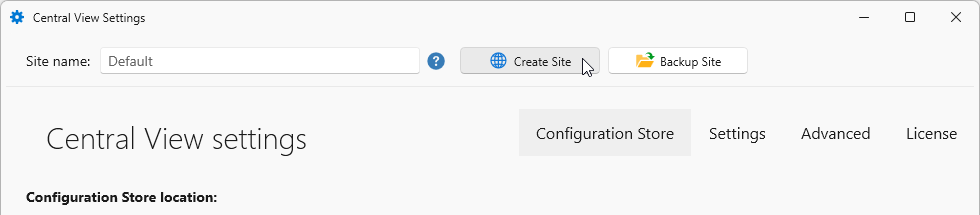
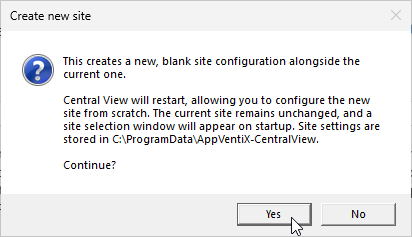
Confirm the creation. This adds a new, blank site configuration alongside the current one and leaves the current site unchanged. Central View then restarts, and a site selection window appears on startup since site settings are stored locally at C:\ProgramData\AppVentiX-CentralView.
When Central View restarts, the new site loads with no configuration store set yet. Give it a name in the Site name field, then choose and configure a configuration store.
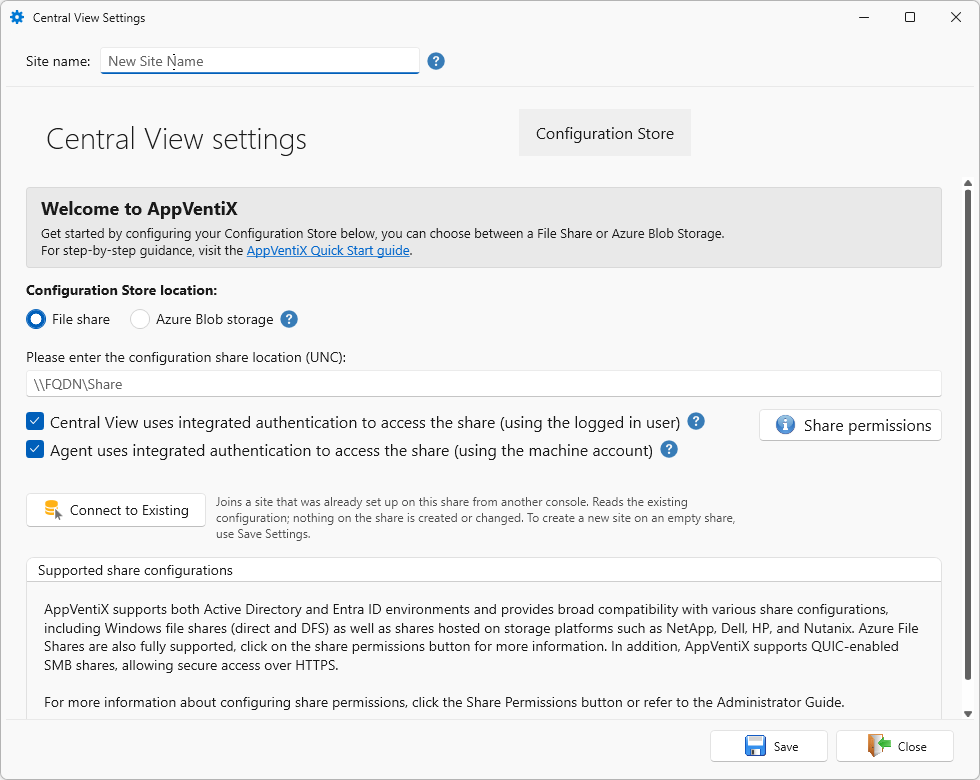
Choose the configuration store type that matches your setup:
- Azure Blob Storage - no Active Directory dependency, accessible outside your network
- SMB Share - standard Windows file share, DFS, or storage vendor share
Note
Configure one of the above configuration stores before continuing.
Once the configuration store is set, click Save.
Central View with multiple sites
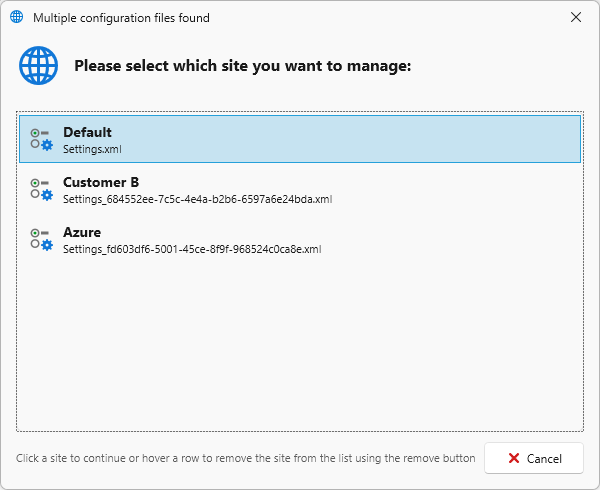
When multiple sites are configured, Central View shows a site selection dialog every time it starts, listing all configured sites so you can pick which one to manage. Hovering a row also reveals a remove button to drop a site from the list.
Tip
Launch multiple instances of Central View to work with more than one site at the same time.